Description
This page provides the artefacts for the BCerT solution to the TTC 2026 Families to Persons case.
Forward and backward transformations are supported as baseline cases, but the core contribution of our approach lies in handling simultaneous edits on both models and restoring consistency. Our approach follows a rule-based propagation strategy, where synchronization is achieved by leveraging the animation and constraint solving capabilities of the ProB model-checker.
- The artifacts: 2026_TTC_fp.zip
- The paper: idani_ttc_2026.pdf
Step 1: Installation
- Download Eclipse Modeling Tools
- Make sure that Eclipse runs with Java 17 or later
- Open Eclipse
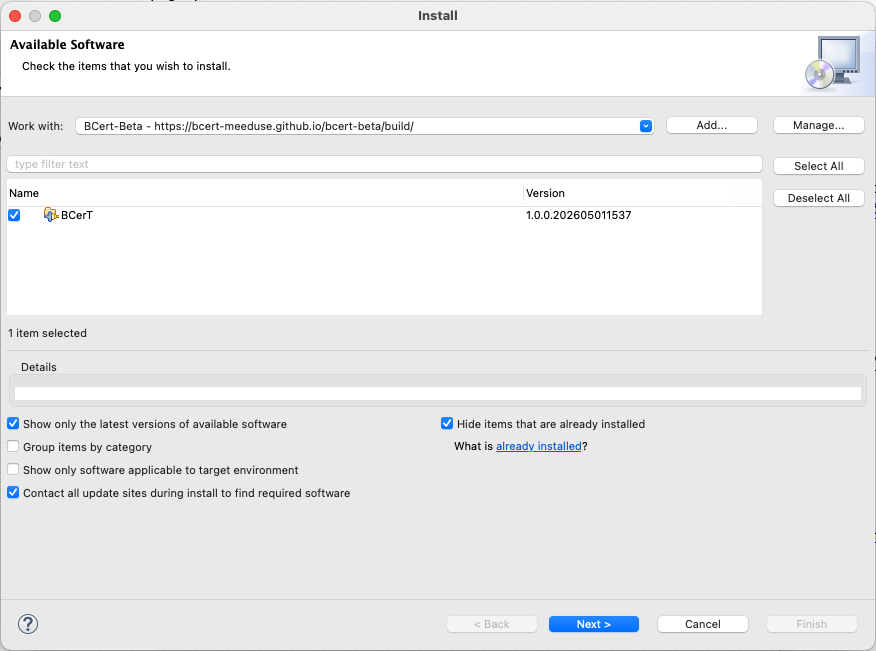
- Go to Help → Install New Software
- Add the B4MSecure update site:
https://bcert-meeduse.github.io/b4msecure/build/ - Add the BCerT-beta update site:
https://bcert-meeduse.github.io/bcert-beta/build/ - Select BCerT
- Click Next
- Complete the installation wizard
- Accept the licences
- Restart Eclipse when prompted
Installation time depends on your network connection because eclipse tries some updates before starting installation.
For general instructions on installing software from update sites, refer to the Eclipse documentation.
Step 2: Download and Import the Solution Project
Download and unzip the archive: 2026_TTC_fp.zip
Once extracted, the archive is organized into several folders corresponding to the different transformation scenarios of the TTC case.
Note that the test folders (1_BatchForward, 2_BatchBackward, etc.) provide ready-to-run test files from the TTC 2026 Families-to-Persons benchmark.
The metamodels used in the case are located in:
- Families – Source metamodel
- Persons – Target metamodel
- pivot – Contains our solution, including the CSP specification and the B models of the transformation, which are described later
Import into Eclipse
- Open Eclipse
- Go to: File → Import…
- Select: General → Existing Projects into Workspace
- Click Next
- Choose Select root directory
- Browse to the extracted folder
2026_TTC_fp - Select all detected projects
- Click Finish
Step 3: Solution overview with basic scenarios
The folder 0_MainTests provides basic examples that help understand how synchronization is triggered, observe the effects of rule applications, and get familiar with the overall execution workflow in BCerT.
README.md file in 0_MainTests documents the provided tests.To open a pivot file, right-click on it, select Open With → Other…, and choose Sample Ecore Model Editor.
Managing the workspace
The following video shows how to open the 0_empty.pivot model, inspect its content, launch the animator, and organize the workspace to display the Execution View, the State View, and the Trace View.
Steps
- In the Model Explorer, right-click on the root element of the
.pivotfile, - then select:
Execute model → T0_MainTransformation.mch, - click Finish.
This opens the main views: the Execution View and the State View, which can be arranged as needed.
- The Execution View allows step-by-step execution of the B machine on the selected model. From this view you have the possibility to open the Execution History View.
- The State View displays the current values of the variables of the B machine. It reflects the current state of the models involved in the transformation, including the pivot, the source (Families), and the target (Persons) models.
- The Execution History View (not displayed by default) provides a history of executed operations during the animation. To show the execution trace, right-click inside the Execution View and select Trace.
Interactive debugging of a transformation
The following video illustrates interactive debugging of a transformation. It demonstrates how to incrementally modify the models and observe both forward and backward transformations.
Steps
- Step 1: add elements to the source model (Families),
- Step 2: observe the forward transformation and the creation of corresponding elements in the target model (Persons),
- Step 3: delete a person and observe the forward propagation (the person is automatically recreated),
- Step 4: change the propagation strategy to backward,
- Step 5: delete a person in the target model,
- Step 6: observe the backward transformation and its effect on the source model.
Automatic running of a transformation
All pivot files contained in a project can be processed in a single run using the Transformation Runner. The execution can be performed sequentially or in parallel. In parallel mode, each pivot file is handled by a separate job. The following video demonstrates the complete workflow.
Steps
- Right-click on a project in the Model Explorer and select Run Transformation.
- In the Run Transformation interface, select the B specification you want to apply to all pivot files of the project. In this example, we choose project
T0_MainTestsand apply the machineT0_MainTransformation.mch. - Select Parallel if you want the execution of the transformation to be done in parallel for the test files. This launches the runner in separate jobs, which enhances performance compared with sequential execution.
- The Transformation Runner is then launched. It shows the parallel jobs and their execution state.
- When finished, you obtain execution metrics highlighting the benefit of parallel execution compared to a sequential run.
RUN FINISHED

Total models           : 15
Wall-clock total       : 4180 ms
Average time per model : 278 ms
...
- Open the Trace View by clicking on the corresponding icon in the Transformation Runner. The Trace view shows the files on which the transformation has been applied.
- Click on Expand all to see the B operations that have been applied for every file.
- You can inspect the test files to check whether the result is the expected one as described in the
README.md file.
0_empty.pivot is UNKNOWN, since it is empty and no transformation rule has been applied.Step 4: Running the benchmark
This step is illustrated in the following video.
For each project, a dedicated B specification is executed depending on the testing objective.
- project
1_BatchForward→T1_BatchForward.mch - project
2_BatchBackward→T2_BatchBackward.mch - …
Each project follows the same structure and contains the test cases provided in the TTC’26 benchmark.
For each test case toto, three files are defined:
toto.pivottotoFam.xmitotoPer.xmi
Initially, these files are empty. The pivot file acts as the entry point: its root element references the roots of both the family model and the person model. This is where the transformation starts.
The Expected folder of each project contains the expected results for every test case, as provided by the TTC benchmark. These files are used to validate the transformation output.
The following figure illustrates the pivot structure for the test case testCreateFamily.
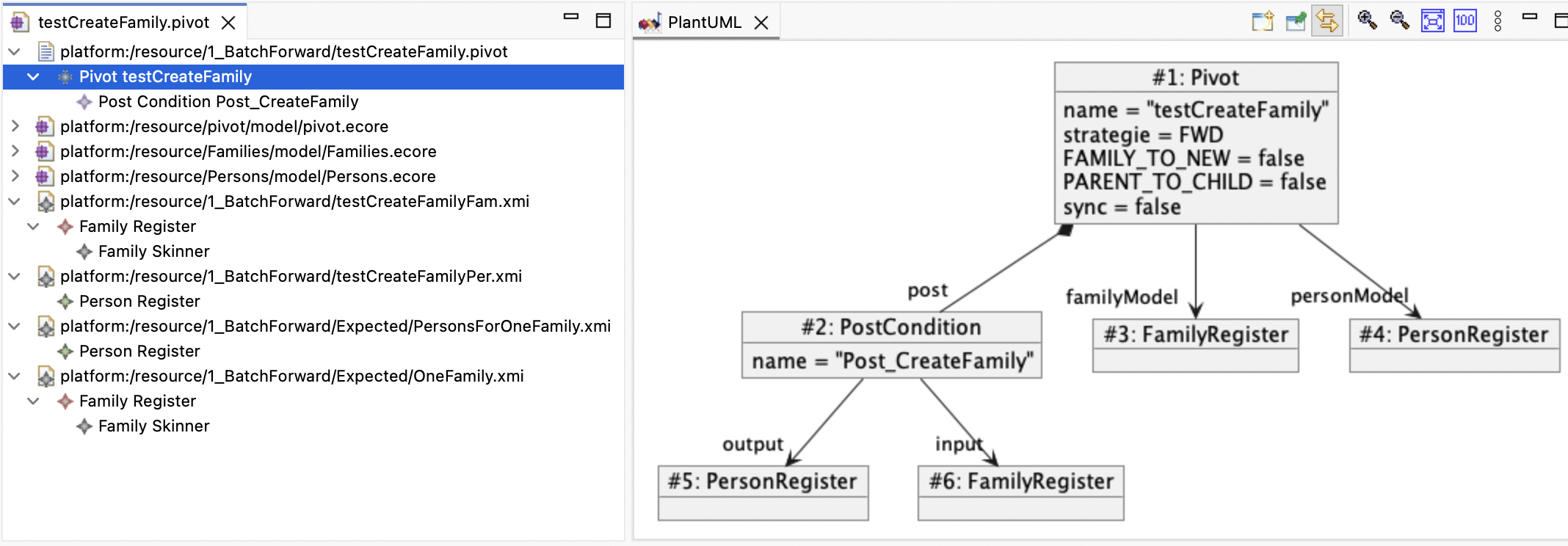
In this example, the pivot named testCreateFamily defines:
- the transformation strategy (
FWD), - configuration parameters (
FAMILY_TO_NEW,PARENT_TO_CHILD,sync), - references to the input models (
FamilyRegisterandPersonRegister), - and a post-condition (
Post_CreateFamily) referencing the expected results.
Step 5: Reset, Transform and Debug
The following video illustrates a typical workflow combining automatic execution and interactive debugging.
First, the transformation is executed automatically on all test cases of the 1_BatchForward project. Then, a specific test case is selected for detailed inspection, namely testDuplicateFamilyMemberNames.pivot. This workflow can of course be reproduced for any of the other projects.
A first step consists in running the RESET.mch machine on this pivot. This operation clears the person model and removes the existing families, bringing the models back to a clean initial state.
In a second step, the interactive animation of T1_BatchForward.mch is launched. This allows the transformation to be executed step by step, making it possible to observe how the model evolves at each stage of the test scenario and to better understand which rules are applied.
T1_BatchForward.mch, T2_BatchBackward.mch, etc).Transformation rules in B
The formal models are located in pivot/model/*.mch and *.csp, together with auxiliary definition files (*.def). The transformation rules are defined in MetaModel.mch.
- The user-oriented transformation is driven by the machine
T0_MainTransformation.mch. This machine acts as a wrapper that exposes only the transformation operations defined inMetaModel.mch. - The execution is delegated to ProB, which is an animator, constraint solver, and model checker for B. At each step, ProB computes the operations that are enabled in the current state of the EMF model, i.e., those whose preconditions hold.
MACHINE
    T0_MainTransformation
INCLUDES
    MetaModel
PROMOTES
  ConcurrentDeleteMatched,
  ConcurrentMatchMemberPerson,
  ConcurrentTargetRenameWins,
  Member2Person,
  ForwardDelete,
  ForwardRename,
  Person2MemberExistingFamily,
  Person2MemberNewFamily,
  BackwardDelete,
  BackwardRenameMemberName,
  BackwardMoveMaleToExistingFamily,
  BackwardMoveFemaleToExistingFamily,
  BackwardMoveMaleToNewFamily,
  BackwardMoveFemaleToNewFamily,
  ForwardCreateMissingPerson
END
Forward transformation rules
-
Member2Person
Creates a newPersonfrom an unmappedFamilyMember, initializes its attributes, and establishes the corresponding mapping. -
ForwardCreateMissingPerson
Completes an existing mapping by creating the missingPersonwhen aFamilyMemberis already mapped but no corresponding person exists. -
ForwardRename
Updates the name of aPersonto reflect changes in the correspondingFamilyMember(family name or member name). -
ForwardDelete
Deletes aPersonwhen the correspondingFamilyMemberno longer exists, and removes the associated mapping. -
ForwardRepairGender
Repairs inconsistencies between the gender of aPersonand the correspondingFamilyMember.
Backward transformation rules
-
Person2MemberNewFamily
Creates a newFamilyand a correspondingFamilyMemberfrom an unmappedPerson, when no suitable family exists. -
Person2MemberExistingFamily
Creates a newFamilyMemberinside an existing family that matches thePerson’s family name. -
BackwardRenameMemberName
Updates the name of aFamilyMemberto match the correspondingPerson. -
BackwardDelete
Deletes aFamilyMemberwhen the correspondingPersonno longer exists, and removes the associated mapping. -
BackwardMoveMaleToExistingFamily / BackwardMoveFemaleToExistingFamily
Moves aFamilyMemberto an existing target family when the associatedPersonrefers to a different family. -
BackwardMoveMaleToNewFamily / BackwardMoveFemaleToNewFamily
Creates a new family and moves theFamilyMemberinto it when the target family does not exist.
Concurrent and consistency rules
-
ConcurrentMatchMemberPerson
Creates a mapping between an existingFamilyMemberand an existingPersonwhen they match but are not yet linked. -
ConcurrentDeleteMatched
Removes obsolete mappings when both the source and target elements have already been deleted. -
ConcurrentTargetRenameWins
Resolves rename conflicts by prioritizing the target (Person) side and propagating the change back to the family model. -
ConcurrentDeleteWins
Resolves conflicts between deletion and renaming by prioritizing deletion and removing the corresponding elements and mappings.
Testing infrastructure
MetaModel.mch. From a strict verification perspective, this means that testing does not provide any added value. In our approach, however, tests play a complementary role focused on validation (i.e., checking that the transformation behaves as expected), especially since the transformation rules are not explicitly detailed in the TTC 2026 call for solutions.To support testing, we rely on a combined CSP (communicating sequential processes) and B approach, which is part of the beta version of BCerT. While B ensures the correctness of state-based transformations through invariants and proofs, CSP is used as an orchestrator to control execution scenarios. This combination allows us to structure test cases as behavioral traces, making it possible to validate the transformation against the TTC benchmark test cases.
Let’s consider the example of the simplest test suite, that of batch forward, used in machine T1_BatchForward.mch. The overall idea is to combine the three layers:
MetaModel.mchdefines the core transformation rules (e.g.,Member2Person,ForwardRename, etc.), together with basic model manipulation operations (e.g.,SonNEW,FamilySetName, etc.).T1_BatchForward.mchspecifies how the transformation is applied for batch forward testing objective.-
BatchForward.cspdefines the test suite by orchestrating the operations ofT1_BatchForward.mch.+----------------------+ +----------------------+ +----------------------+ | MetaModel.mch | --> | T1_BatchForward.mch | --> | BatchForward.csp | | (transformation | | ( propagation | | (execution control | | rules + basic | | + mutation ) | | | | operations) | | | | | +----------------------+ +----------------------+ +----------------------+
The following basic operation from MetaModel.mch creates a new son within an existing family by introducing a new FamilyMember and linking it to the corresponding family.
SonNEW(aFamilyName, aSonName) =
  PRE
    aSonName : STR1 &
    aFamilyName : STR1
  THEN
    ANY aFamily, aMember WHERE
        aFamily : Family & Families_Family_name(aFamily) = aFamilyName
        & families(aFamily) = fmlRoot
        & aMember : FAMILYMEMBER
        & aMember /: FamilyMember
    THEN
        FamilyMember := FamilyMember \/ {aMember} ||
        theSons := theSons \/ {aMember |-> aFamily} ||
        Families_FamilyMember_name := Families_FamilyMember_name <+ {aMember |-> aSonName}
    END
  END;
The following operation from T1_BatchForward.mch defines a mutation of the input model where a new family “Flanders” is created with a son “Rod”.
fam <-- createFlandersFamilySonRod =
    BEGIN
        fam <-- FamilyNEW("Flanders") ;
        SonNEW("Flanders", "Rod")
    END ;
The operation propagate from T1_BatchForward.mch triggers one step of the forward transformation by applying the rule Member2Person. In fact, in the batch forward test suite only rule Member2Person is useful.
propagate =
    BEGIN
        Member2Person
    END
On the CSP side, a test scenario is described as a sequence of actions. For example:
testCreateFamilyMember.true
    -> noPrecondition
    -> createFlandersFamilySonRod
    -> TRANSFORM
This means that:
- the test case
testCreateFamilyMemberis selected, - no precondition is required,
- the input model is updated by introducing one family with one member,
- the transformation is executed.
Process TRANSFORM applies transformation rules repeatedly as long as they are enabled, until the POST branch can be taken (i.e., a call to assertPostcondition occurs).
TRANSFORM =
      propagate -> TRANSFORM
  []
      POST

POST =
      assertPostcondition.true  -> STOP
  []
      assertPostcondition.false -> STOP
Note that the preconditions of propagate and assertPostcondition are mutually exclusive. As long as at least one transformation rule is applicable, propagate remains enabled and the system continues applying transformation steps. Once no rule can be triggered anymore (i.e., a fixpoint is reached), propagate becomes disabled and only assertPostcondition can be executed. This ensures a separation between the transformation phase and the validation phase.