Step 4 generated a Modeling project in the Eclipse run-time that contains, for every input model xxx.fam:
xxx.per— an empty output file-
xxx.pivot— an instance of the pivot meta-model mapping the input model to the output model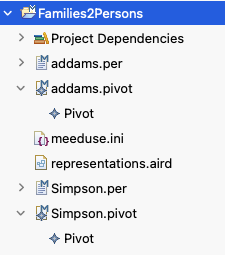
Interactive debugging
-
Open a
.perfile to observe its content during debugging. - Right-click on the root entry of the corresponding
.pivotfile in the Model explorer.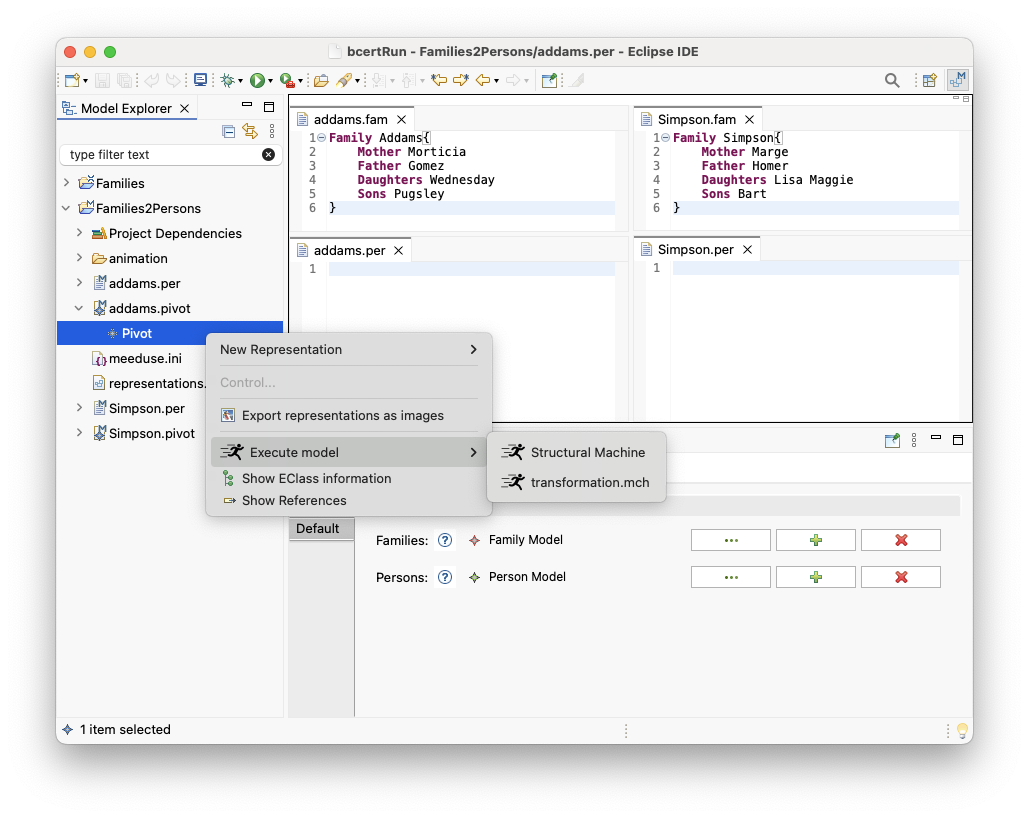
-
Select Execute model → transformation.mch
-
Click Finish
-
The Meeduse debugging views are opened:
- Execution View — lists the executable operations of the transformation
- State View — shows the current values of variables
-
Double-click an operation in the Execution View (e.g.,
Member2Person()) to execute one step of the transformation.
The target file.peris updated and the invariant is verified at every step.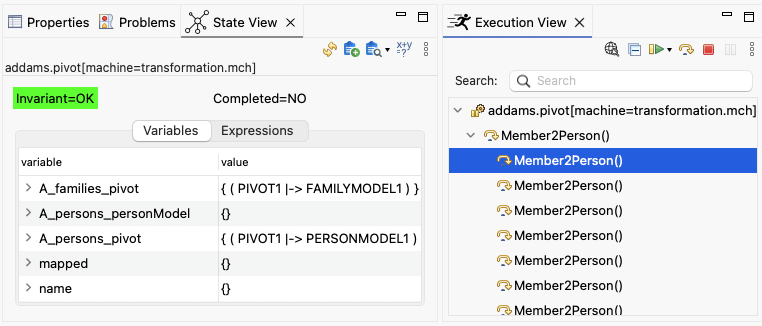 For more information about the debugging features of Meeduse, please refer to the official Meeduse documentation.Do not modify the file manually during interactive debugging. This will break the synchronization and you will need to restart from Step 1.When all model elements have been transformed, the State View displays Completed=TRUE.
Automatic execution
-
Right click on project
Families2Personsand select Run transformation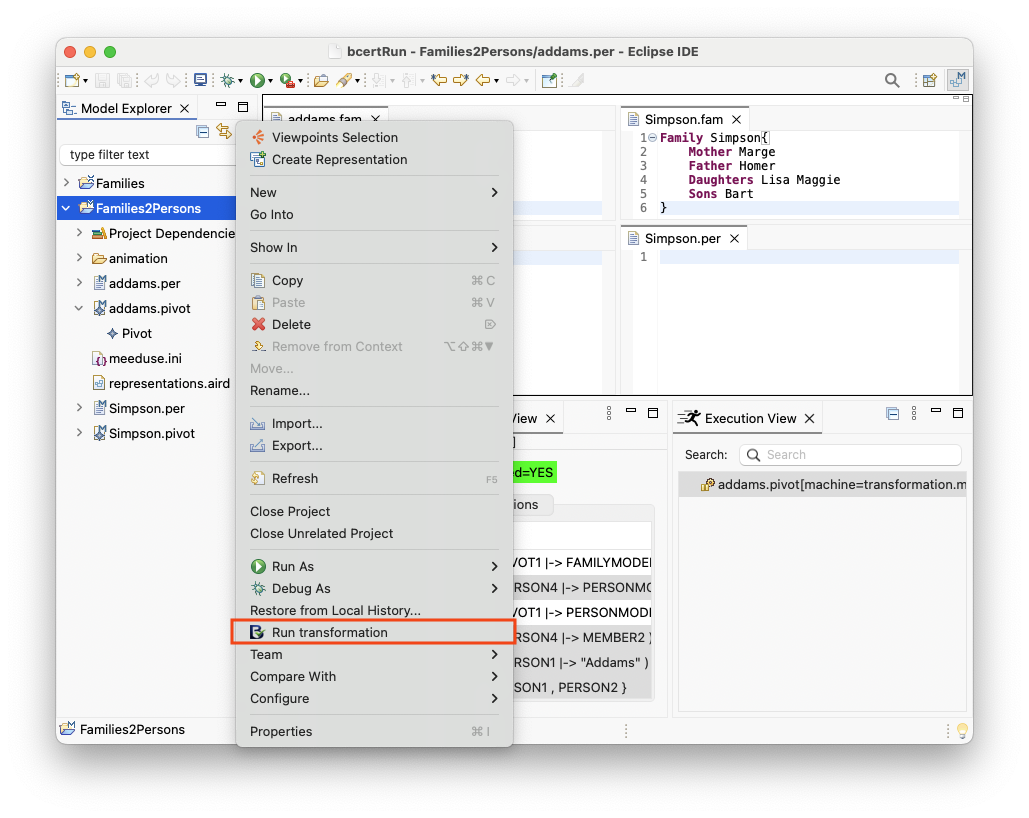
-
Choose the transformation machine
transformation.mch -
If you have many files to transform (i.e., several
.pivotfiles inside projectFamilies2Persons), select Parallel execution.
Otherwise, the transformation will be executed sequentially.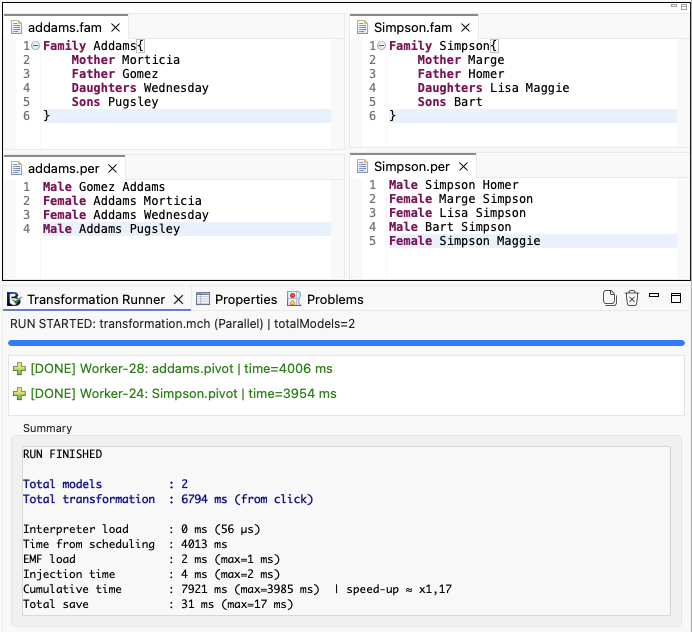
After execution, BCerT displays a detailed report including:
- execution status for each model
- total number of transformed models
- total transformation time
- performance metrics
The generated output models (.per files) are automatically updated.